
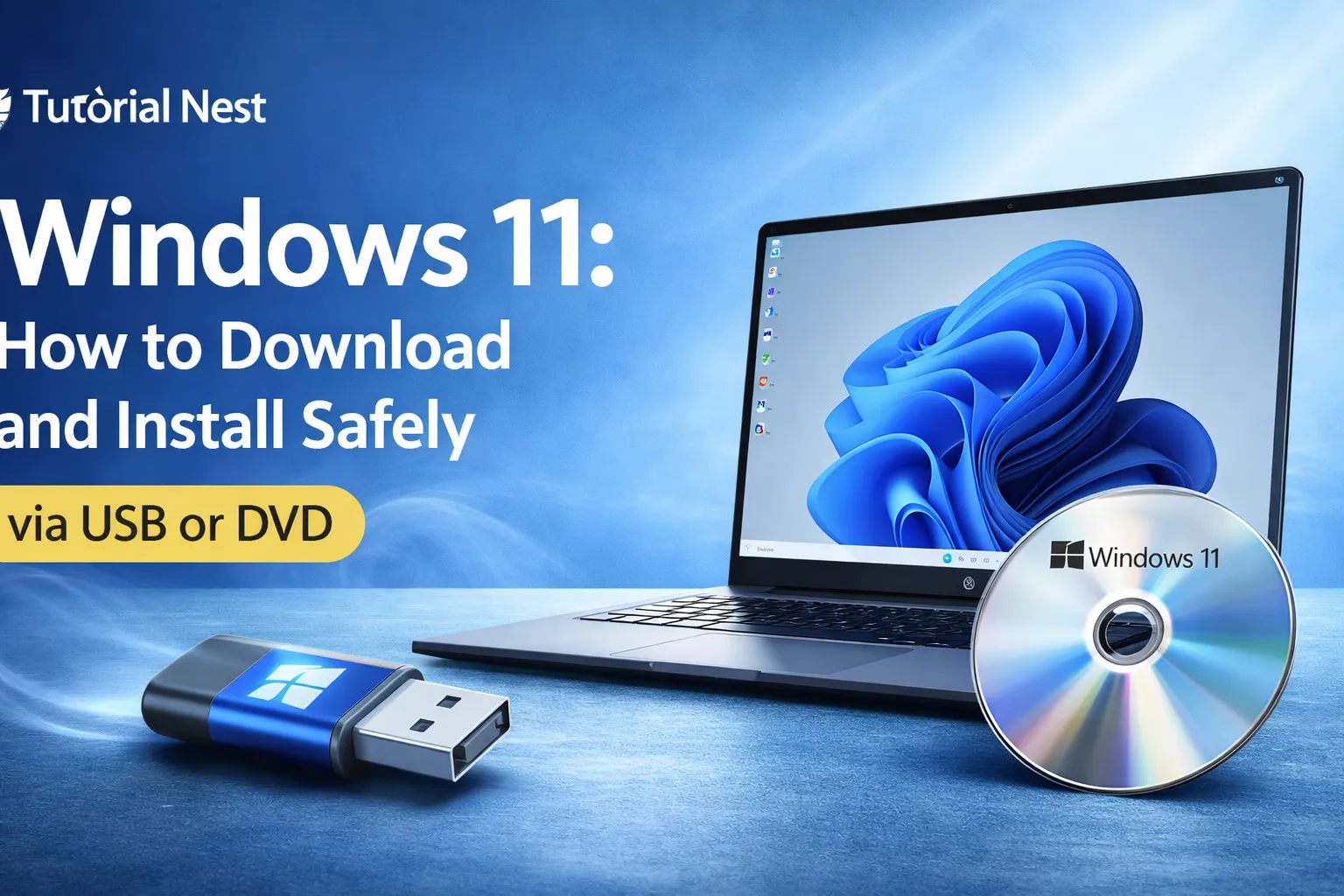

Windows 11 is the latest operating system from Microsoft, offering a modern interface, improved performance, and enhanced security features. In this guide, you will learn how to safely download and install Windows 11 using a USB or DVD.
Why You Should Upgrade to Windows 11
Before diving into the installation process, it’s important to understand why upgrading to Windows 11 can benefit your workflow and computing experience:
-
Modern User Interface: Windows 11 introduces a cleaner, centered Start menu and redesigned taskbar.
-
Enhanced Security: Built-in security features like TPM 2.0 and Windows Hello help protect your device.
-
Better Performance: Optimized for speed and efficiency, especially for gaming and productivity.
-
Improved Multitasking: Snap layouts and virtual desktops make it easier to manage multiple tasks.
-
Support for Android Apps: Windows 11 allows running Android apps natively through the Microsoft Store.
System Requirements for Windows 11
Before downloading Windows 11, ensure your PC meets the minimum requirements:
-
Processor: 1 GHz or faster with 2 or more cores on a compatible 64-bit processor.
-
RAM: 4 GB or more.
-
Storage: 64 GB or more.
-
System Firmware: UEFI, Secure Boot capable.
-
TPM: Version 2.0.
-
Graphics: DirectX 12 compatible with WDDM 2.x.
-
Display: 720p or higher, 9″ or larger diagonal screen.
-
Internet Connection: Required for updates and some features.
Tip: Use the PC Health Check tool to verify compatibility.
Step 1: Back Up Your Data
Before installing or upgrading to Microsoft Windows 11, it is essential to back up all your important data. The installation process—especially a clean install—can overwrite or delete existing files, which may result in permanent data loss if no backup is available.
Taking a few minutes to properly secure your files can save you from serious problems later.
Why Backups Are Important
During a Windows installation, you may be required to format your system drive or select a partition for installation. If the wrong option is chosen, it can erase:
- Personal documents
- Photos and videos
- Installed applications
- Emails and saved settings
⚠️ Important: Even when choosing the “Upgrade” option, unexpected errors can still cause data loss.
Use External Storage Devices
One of the safest and most reliable methods is to copy your files to an external storage device. This includes:
- External hard drives
- USB flash drives
- SSD storage devices
Simply connect the device to your PC and manually copy important folders such as Documents, Pictures, Downloads, and Desktop files.
Tip: Organize your files into clearly labeled folders before backing them up for easier recovery later.
Use Cloud Storage Services
Cloud storage is another excellent option, especially if you want access to your files from anywhere. Popular services include:
- OneDrive
- Google Drive
- Dropbox
Uploading your files to the cloud ensures they are (safe) even if your device is damaged or lost.
🔒 Recommendation: Enable automatic sync features to keep your files updated in real time.
Create a System Image Backup
For maximum protection, consider creating a full system image backup. This method captures your entire system, including:
- Operating system
- Installed programs
- Personal files
- System settings
If something goes wrong, you can restore your PC exactly as it was before installation.
Double-Check Your Backup
Before proceeding with the installation, always verify that your backup is complete. Make sure:
- All critical files are included
- Backup devices are working properly
- Cloud uploads are fully synced
Tip: Open a few files from your backup to confirm they are accessible and not corrupted.
Backing up your data is the most important step before installing Windows 11. It provides peace of mind and ensures that even if something goes wrong, your valuable information remains safe and recoverable.
Step 2: Download Windows 11 Safely
Downloading Microsoft Windows 11 from a trusted and official source is one of the most important steps in the installation process. Using unofficial or modified files can expose your system to malware, corrupted installations, or security vulnerabilities. For this reason, you should always rely on Microsoft’s official download methods.
Download from the Official Microsoft Website
The safest way to get Windows 11 is directly from Microsoft’s official website:
Download Windows 11 from Microsoft:
https://www.microsoft.com/software-download/windows11
This page provides all the official tools and files you need to install or upgrade your system securely. It ensures that you are downloading a genuine, up-to-date version of Windows 11 without any modifications.
🔒 Tip: Always double-check the URL to make sure you are on the official Microsoft domain before downloading any files.
Use the Media Creation Tool
The Media Creation Tool is one of the easiest and most reliable methods for downloading and preparing Windows 11 installation media. This official tool allows you to:
- Download the latest version of Windows 11
- Create a bootable USB drive automatically
- Generate an ISO file for later use
It is especially useful for beginners, as it simplifies the entire process and reduces the risk of errors.
Recommendation: Use the Media Creation Tool if you want a quick and hassle-free setup.
Download ISO Files Directly
If you prefer more control over the installation process, you can download the Windows 11 ISO file directly from Microsoft. This method is ideal for advanced users who want to:
- Burn the ISO file to a DVD
- Create a bootable USB manually
- Use the file for multiple installations
Once downloaded, the ISO file can be used with tools like Rufus or built-in Windows features to create installation media.
Avoid Unofficial Sources
It is extremely important to avoid downloading Windows 11 from:
- Torrent websites
- Third-party download platforms
- Unverified links or forums
These sources often provide modified versions of Windows that may include malware, spyware, or corrupted system files.
⚠️ Warning: Installing unofficial versions can compromise your security, cause system instability, and even lead to data loss.
Downloading Windows 11 safely is the foundation of a successful installation. By using only official Microsoft sources and trusted tools, you ensure that your system remains secure, stable, and free from hidden risks.
Step 3: Creating Bootable USB or DVD
Before installing Microsoft Windows 11, you need to create bootable installation media. This allows your computer to start the setup process directly from a USB drive or DVD instead of the existing operating system. There are two main methods available: using a USB flash drive or a DVD. While both are effective, USB installation is generally faster and more convenient for modern devices.
Option 1: USB Installation (Recommended)
Creating a bootable USB drive is the most popular and efficient method. It offers faster installation speeds and better compatibility with newer systems.
To get started:
- Insert a USB flash drive with at least 8 GB of storage into your computer.
- Download and open the Media Creation Tool from Microsoft’s official website.
- Select “Create installation media (USB flash drive, DVD, or ISO file) for another PC.”
- Choose your preferred language, edition, and architecture (64-bit is recommended for most users).
- Select USB flash drive as the media type.
- Click Next and wait for the tool to download Windows 11 and prepare the USB drive.
Once the process is complete, your USB drive will be fully bootable and ready to use for installation.
💡 Tip: Make sure there are no important files on the USB drive, as the process will erase all existing data.
Option 2: DVD Installation
Although less common today, installing Windows 11 via DVD is still an option, especially for older systems that support optical drives.
To create a bootable DVD:
- Download the official Windows 11 ISO file from Microsoft.
- Insert a blank DVD into your computer’s optical drive.
- Right-click the ISO file and select “Burn disc image.”
- Follow the on-screen instructions to complete the burning process.
After the process finishes, ensure the DVD is properly created by testing it on the PC you plan to use.
⚠️ Important: DVDs are more prone to errors, scratches, and slower performance compared to USB drives.
USB vs. DVD: Which Should You Choose?
While both methods work, USB installation is generally the better choice due to:
- Faster boot and installation times
- Better compatibility with modern hardware
- Easier portability and reuse
DVD installation may still be useful for legacy systems, but it is becoming less common in modern setups.
Creating bootable installation media is a critical step in the Windows 11 setup process. By using official tools and following the correct steps, you ensure a smooth and reliable installation experience without unnecessary errors.
Step 4: Install Windows 11
Booting from USB or DVD
Once your bootable USB drive or DVD is ready, the next step is to start your computer using that installation media. First, restart your PC and access the BIOS or UEFI firmware settings. This is usually done by pressing a specific key during startup, such as F2, DEL, ESC, or F12, depending on your device manufacturer.
Inside the BIOS/UEFI menu, navigate to the Boot Options or Boot Priority section. Here, you need to set your USB drive or DVD as the primary boot device. This ensures that your computer loads the Windows 11 installer instead of the existing operating system.
After making the changes, save your settings and exit the BIOS. Your computer will restart automatically, and if everything is configured correctly, it will boot directly from the USB or DVD. You should now see the Windows Setup screen.
💡 Tip: If your PC does not boot from the USB or DVD, double-check that the installation media was created correctly and that Secure Boot or boot mode settings are properly configured.
Windows 11 Setup Process
Once the Windows Setup screen appears, you can begin the installation process. Start by selecting your language, time format, and keyboard layout, then click Next. On the following screen, click the Install Now button to proceed.
You will then be prompted to enter your Windows 11 product key. If you are upgrading from a previously activated version of Windows, you can click “I don’t have a product key” and activate it later. The system will automatically detect your license after installation in most cases.
Next, read and accept the Microsoft license terms to continue. After that, you will be asked to choose between two installation types:
- Upgrade: Keeps your existing files, apps, and settings. Ideal if you are upgrading from Windows 10.
- Custom (Advanced): Performs a clean installation. This option removes all previous data and installs a fresh copy of Windows 11.
If you select Custom Installation, you will need to choose the target drive or partition. Carefully select the correct partition where you want Windows 11 installed. If necessary, you can delete old partitions, create new ones, or format the drive before proceeding.
⚠️ Warning: Formatting or deleting partitions will erase all data on that drive. Make sure you have backed up important files beforehand.
Once the destination is selected, click Next to begin the installation. Windows will start copying files, installing features, and configuring the system. During this process, your PC may restart several times—this is completely normal.
After installation is complete, your system will boot into the initial setup phase, where you can configure your account, privacy settings, and preferences.
Step 5: Initial Configuration
After successfully installing Microsoft Windows 11, the next step is to complete the initial configuration. This stage is essential to ensure your system is secure, personalized, and fully functional from the start.
Set Up Your Account
When Windows 11 boots for the first time, you will be guided through the Out-of-Box Experience (OOBE). One of the first steps is choosing how you want to sign in.
You can either:
- Sign in with a Microsoft account, which allows you to sync settings, access OneDrive, and download apps from the Microsoft Store.
- Create a local account, which is ideal if you prefer more privacy and do not want to link your device to an online account.
Tip: Using a Microsoft account is recommended for most users, as it enables features like cloud backup, device synchronization, and easier recovery options.
Configure Privacy Settings
Windows 11 gives you control over your privacy preferences during setup. You will be asked to enable or disable features such as:
- Location services
- Diagnostic data (basic or optional)
- Inking and typing personalization
- Advertising ID
It is important to review these options carefully. While enabling some features can improve your experience, disabling unnecessary data collection can enhance your privacy.
Recommendation: Choose only the settings you are comfortable with and avoid enabling features you do not need.
Connect to Wi-Fi and Sync Settings
Next, connect your device to a Wi-Fi network or a wired internet connection. This step is crucial because Windows 11 relies on internet access for updates, account verification, and feature activation.
If you signed in with a Microsoft account, your system may automatically sync:
- Personal settings
- Wallpapers and themes
- Browser data (via Edge)
- Saved passwords
This makes it easier to continue working across multiple devices without starting from scratch.
Check for Updates
Before using your system fully, it is highly recommended to check for updates. To do this:
- Open Settings
- Go to Windows Update
- Click Check for updates
Windows will download and install the latest security patches, drivers, and performance improvements. Keeping your system updated ensures better stability and protection against vulnerabilities.
⚠️ Important: Some updates may require a restart. Make sure to complete all updates before installing additional software.
After completing these steps, your Windows 11 setup is nearly complete. You can now:
- Customize your desktop and themes
- Install essential applications
- Adjust system preferences
Taking a few extra minutes to configure everything properly will provide a smoother and more secure experience moving forward.
Step 6: Installing Drivers and Software
After completing the initial setup of Microsoft Windows 11, the next crucial step is to install the correct drivers and essential software. This ensures your system runs smoothly, efficiently, and without compatibility issues.
Check for Missing Drivers
Start by opening the Device Manager, which allows you to view all hardware components installed on your computer. To access it:
- Right-click the Start Menu
- Select Device Manager
Look for any devices marked with a yellow warning icon. This indicates that a driver is missing or not installed correctly. Common components that may require drivers include:
- Graphics card (GPU)
- Network adapter (Wi-Fi/Ethernet)
- Audio devices
- Chipset and motherboard components
⚠️ Important: Running your system without proper drivers can lead to poor performance, limited functionality, or hardware not working at all.
Install the Latest Drivers
To ensure maximum performance and stability, always download drivers from official sources. The best options include:
- Your PC manufacturer’s website (Dell, HP, Lenovo, etc.)
- Hardware manufacturer websites (NVIDIA, AMD, Intel)
Avoid using unknown third-party driver websites, as they may provide outdated or unsafe files.
💡 Tip: Many modern systems automatically install basic drivers through Windows Update. However, manually installing the latest versions can significantly improve performance, especially for gaming or professional tasks.
Use Windows Update for Drivers
Windows 11 can also help you find and install drivers:
- Open Settings
- Go to Windows Update
- Click Check for updates
- Look under Optional Updates for additional drivers
This is a safe and convenient way to install certified drivers directly from Microsoft.
Install Essential Software
Once your drivers are properly installed, the next step is setting up your essential applications. These programs are necessary for everyday use and productivity.
Recommended software includes:
- Web browsers (Google Chrome, Microsoft Edge, Firefox)
- Antivirus/security tools for protection
- Office or productivity apps (Microsoft Office, LibreOffice)
- Media players and utilities
- Compression tools (like WinRAR or 7-Zip)
Recommendation: Always download software from official websites to avoid malware or unwanted programs.
Keep Your System Updated
Regular updates are essential for maintaining system performance and security. Make it a habit to:
- Update drivers periodically
- Keep Windows updated
- Upgrade your applications when new versions are released
Installing the right drivers and software is just as important as installing the operating system itself. A properly configured system will run faster, remain stable, and provide a much better overall user experience.
Tips for Safe Installation
Installing Microsoft Windows 11 safely is essential to avoid errors, data loss, or security risks. By following a few important precautions, you can ensure a smooth and secure installation process from start to finish.
Verify ISO Integrity
Before using any installation file, it is crucial to verify the integrity of the Windows 11 ISO. This means checking that the file has not been corrupted or altered during download. Microsoft provides official ISO files, and you can compare the file’s hash (such as SHA-256) with the original value to confirm authenticity.
Tip: Using verified files ensures that your installation is free from malware, corruption, or hidden modifications.
Disconnect External Devices
To minimize the risk of installation errors, disconnect any unnecessary external devices before starting the process. This includes:
- External hard drives
- USB flash drives (except the installation media)
- Printers and scanners
- Other peripherals
Leaving extra devices connected can sometimes cause conflicts during installation or lead to the wrong drive being selected.
⚠️ Important: Keeping only essential devices connected helps avoid accidental data loss or installation on the wrong disk.
Enable Secure Boot and TPM
Modern security features such as Secure Boot and Trusted Platform Module (TPM 2.0) are required for Windows 11 and play a key role in protecting your system.
- Secure Boot ensures that only trusted software loads during startup
- TPM 2.0 provides hardware-based security for encryption and authentication
You can enable these settings in your BIOS/UEFI firmware before installation.
Recommendation: Always keep these features enabled to improve system security and meet Windows 11 requirements.
Keep Recovery Tools Ready
Even with a careful setup, unexpected issues can occur. That’s why it’s important to prepare recovery tools in advance.
You can create:
- A Windows recovery drive
- A system image backup
- Emergency boot media
These tools allow you to restore your system quickly if something goes wrong during or after installation.
Tip: Having a recovery option ready can save hours of troubleshooting and prevent permanent data loss.
Taking a few extra precautions before installing Windows 11 can make a significant difference in the outcome. By verifying your files, preparing your system, and enabling security features, you ensure a safer, faster, and more reliable installation experience.
Common Issues and How to Fix Them
Even when following all the correct steps, installing Microsoft Windows 11 can sometimes present unexpected challenges. Understanding the most common issues and how to fix them will help you complete the installation process smoothly and avoid frustration.
PC Doesn’t Meet Requirements
One of the most frequent problems users face is compatibility. Windows 11 has strict system requirements, including TPM 2.0, Secure Boot, and supported processors.
If your PC does not meet these requirements, you have two main options:
- Upgrade your hardware (such as adding TPM support or upgrading your CPU)
- Continue using Windows 10, which is still supported and stable
Tip: Use the official PC Health Check tool to quickly determine if your device is compatible.
Installation Stuck or Freezing
Sometimes the installation process may freeze, get stuck on a loading screen, or take an unusually long time.
To fix this:
- Restart your computer and try again
- Recreate your bootable USB or DVD
- Ensure your installation media is not corrupted
- Check BIOS settings such as boot mode (UEFI recommended)
⚠️ Important: Avoid interrupting the installation process unless it is clearly stuck for an extended period (e.g., over 30–60 minutes).
Activation Problems
After installation, you may encounter issues activating Windows 11. This usually happens if:
- The product key is invalid
- The key has already been used on another device
- You skipped activation during setup
To resolve this:
- Enter a valid Windows 11 license key
- Sign in with your Microsoft account (linked licenses activate automatically)
- Use the Activation Troubleshooter in Settings
Tip: If you upgraded from Windows 10, your license may activate automatically without needing a key.
Driver Incompatibility
After installation, some hardware components may not work properly due to missing or incompatible drivers. This can affect:
- Graphics performance
- Sound output
- Network connectivity
To fix driver issues:
- Visit your device manufacturer’s official website
- Download the latest drivers for Windows 11
- Use Windows Update to install certified drivers
Recommendation: Always avoid third-party driver download websites, as they may provide outdated or unsafe files.
Most Windows 11 installation issues are easy to fix with the right approach. By identifying the problem early and applying the correct solution, you can ensure a stable and fully functional system.
Advantages of Using USB vs. DVD
| Feature | USB Installation | DVD Installation |
|---|---|---|
| Speed | Faster boot and install | Slower, especially on older drives |
| Portability | Easy to carry and reuse | Less convenient |
| Reliability | Less prone to scratches | Prone to burning errors |
| Future-proof | Works on most modern PCs | Limited to DVD drives |
Recommendation: USB installation is preferred for modern devices due to speed and convenience.
Executive Summary
Installing Windows 11 safely using USB or DVD doesn’t have to be complicated. By following this guide, you can ensure:
-
A smooth download process from official sources.
-
Proper backup of your data to avoid loss.
-
Correct creation of bootable media.
-
Secure installation and initial setup with optimal settings.
-
Before working with hardware or creating installation media, it’s important to understand basic safety concepts. You can also check this guide on: ↗️how to identify positive and negative wires to avoid electrical mistakes.
Windows 11 offers enhanced security, performance improvements, and a modern interface, making it worth upgrading for both personal and professional users.
Start your Windows 11 journey today and enjoy the latest in Microsoft innovation safely and efficiently.

3 Comments
web platforms offer a variety for entertainment.
Opt for reliable platforms for a safe experience.
View explicit material safely by choosing verified websites.
Opt for secure platforms for discreet entertainment.
I’ve been exploring for a bit for any high quality
articles or weblog posts on this kind of house .
Exploring in Yahoo I ultimately stumbled upon this web site.
Studying this info So i am glad to show that I have an incredibly just right uncanny feeling I came upon just what I needed.
I so much certainly will make sure to don?t omit this site
and provides it a look regularly.